Redacting a screenshot usually means a small chore: save the image, open a website or an editor, upload it, black out the sensitive parts, download it, then find where the file went. When the screenshot is a dashboard, a support ticket or a web app you are already looking at, all of that happens after you have left the page. The Privshot browser extension removes the round trip. You capture what is on screen and it blacks out the personal data on the spot, without a single file leaving your computer.
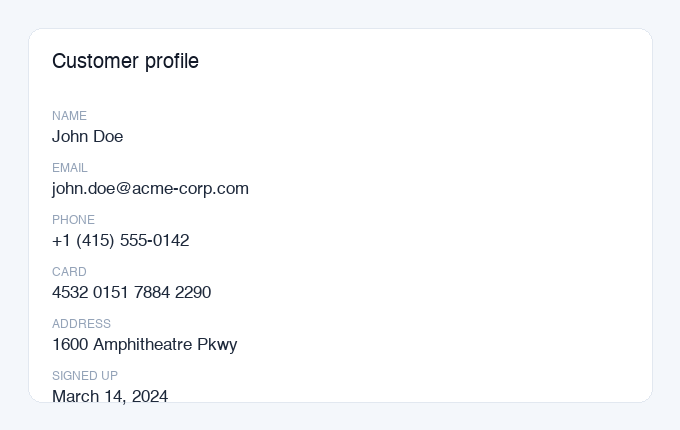
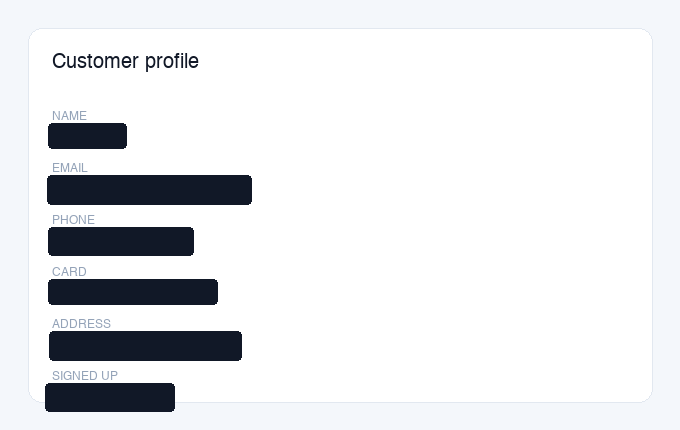
Redact a screenshot in your browser, step by step
The extension is free and works in Chrome and Firefox. The whole flow is four steps:
- 1. Install it. Add Privshot from the Chrome Web Store or Firefox Add-ons, both linked on the extension page. It sits as a small icon in your toolbar and nothing else.
- 2. Capture. Click the icon, then either drag a box over the part of the page you care about or grab the whole visible tab.
- 3. Let it find the data. Privshot reads the capture with OCR, works out what is personal, and covers names, emails, phone numbers, cards, addresses and IDs automatically.
- 4. Review and export. Add a box over anything it missed, delete one you do not want, change the color, then download the clean PNG or copy it straight to your clipboard.
Region or the whole tab
A full-page screenshot of a busy dashboard is often too much: you end up sharing ten fields when you needed one. Selecting a region right on the page keeps the capture tight, so there is less to review and less that can leak. When you do need everything that is visible, the whole-tab capture is one click. Either way, the redaction step that follows is identical.
What it detects
The extension uses the same detection engine that powers the website, so it finds the same categories: names, email addresses, phone numbers, credit card numbers, postal addresses, national IDs such as a US SSN or a French INSEE number, and more. It reads every piece of text in the capture, not just the field you were looking at. That is exactly where manual redaction slips: the email hiding in a signature, the order number in a URL, the phone number three messages up. You review instead of hunt.
Is a browser extension private?
This is the honest part, because privacy is the whole point of the product. Your capture is sent to Privshot's servers to run the detection, processed in memory in the EU, then discarded immediately. It is never stored, shared, or used to train any model. The extension only reads a tab when you click its button or press its shortcut. It does not run in the background, does not read other pages, and tracks nothing. The optional API key you can add for watermark-free output is stored only on your own device.
We do not claim that nothing leaves your browser, because that would not be true: the image goes to the server for detection, exactly like using the website. What is true is that it is processed and thrown away, and that the extension asks for the narrowest permissions a capture tool can, so it cannot read or change the sites you browse. The full detail is in the privacy policy.
Cover it with a solid box, never a blur
However you redact, one rule decides whether it holds: use a solid, opaque box that overwrites the pixels. Blur and pixelation only look removed. For short, structured data like a card or phone number they can often be reconstructed, which we go through in why blurring is not safe redaction and is pixelation reversible. Privshot uses solid boxes by default, and because you export a flattened PNG there is no hidden layer left to peel back.
The one rule: a safe redaction removes the information, it does not just hide it. If the pixels underneath still exist, so does the leak.
Prefer not to install anything?
The same detection runs on the Privshot website: drop a screenshot in and it redacts it in your browser, no extension required. And if you are redacting on a phone or without any tool at all, the manual method still works as long as you use a solid fill and export a fresh copy. There is a device-by-device walkthrough in how to redact a screenshot.
Redacting a lot of them?
If screenshots pile up, in support tooling, bug reports or a log pipeline, redacting by hand does not scale. The Privshot API detects and redacts PII in images programmatically, with a free tier to start, and there is a copy-paste tutorial in redact PII from images with an API (Python).
Frequently asked questions
How do I redact a screenshot in Chrome?
Install the Privshot extension from the Chrome Web Store, click its toolbar icon, then select a region or grab the whole tab. It blacks out names, emails, cards and other personal data automatically. Review the boxes, then download the clean image or copy it to your clipboard. It is free and needs no account.
Is the Privshot browser extension free?
Yes. Capturing and redacting is free, on both Chrome and Firefox. An optional paid API key removes the small watermark and raises the limits, but you never need it to redact a screenshot.
Does the extension send my screenshot to a server?
Yes. The capture is sent to Privshot's servers to run the detection, processed in memory in the EU, then discarded immediately. It is never stored, shared, or used to train a model. The extension only accesses a tab when you trigger it, and reads no other page content.
Can I redact only part of the page?
Yes. Use the region capture to drag a box over just the area you need. The rest of the page is never captured, so there is less to review and less that can leak.
In short
Redacting a screenshot should not mean leaving the page you are on. Capture a region or the whole tab, let Privshot black out the personal data, and export a clean image, all in your browser. Get the extension for Chrome or Firefox.